
Introduction to GitHub Copilot:
GitHub Copilot is a coding tool that uses intelligence to help you with your code. It was made by GitHub and OpenAI using the GPT-4 model. GitHub Copilot can finish writing code for you, create functions, and make boilerplate code while you are working on your project. You can use GitHub Copilot with different programming languages like Python, JavaScript, and Go. GitHub Copilot is like having a partner who helps you write code inside your editor.
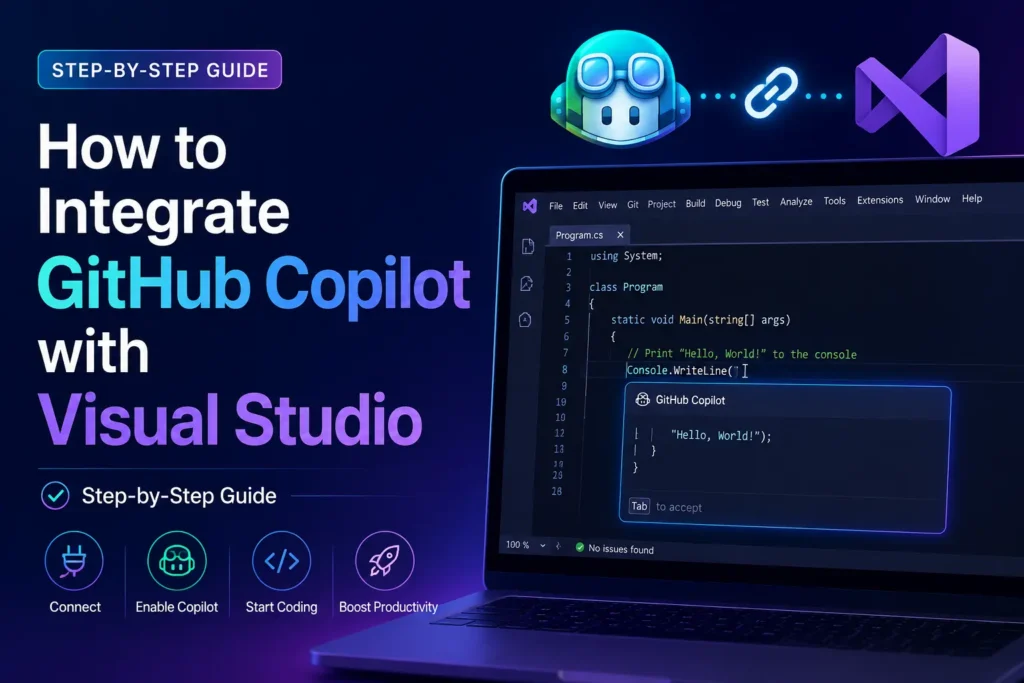
In the current industry, developers use AI coding assistants to decrease the duration of work on recurring tasks. It is common to apply those tools when people write tests or create documentation. As junior developers work, the tools provide suggestions based on the context and show patterns that follow standard industry practices. By using the assistants, developers experience a lower level of mental effort during the coding process. There is a shift in focus where developers attend to the structure and the logic of the software instead of the specific rules of the programming language. Due to those factors, the teams complete the delivery cycles in less time. And there is a lower frequency of errors that exist in the final software.
When Copilot is combined with Visual Studio, this can be accessed within Microsoft’s rich enterprise IDE seamlessly. Suggestions can be seen inline, explanations are provided in a conversational chat interface, and debugging assistance can be given without any workflow disruption. This product integrates very well with features of the VS product suite, such as IntelliSense, Git support, and the debugger, providing a coherent environment. Teams using the two products report productivity gains, specifically within large code bases.
Table of Contents
What You Need Before Installing GitHub Copilot:
An account is required for a GitHub account, so be logged in before using Copilot within Visual Studio. Individual developers can subscribe to a personal GitHub account on a Copilot Individual or Pro plan, while organizations can have Copilot business or enterprise accounts linked to an organization GitHub account. Students and Open-Source Maintainers can get a free account using the verified GitHub program.
🔗 GitHub Copilot — Official & Reference Links:
What is GitHub Copilot?
- 🌐 GitHub Copilot Overview — Official product page
- 📄 GitHub Copilot Quickstart — Get up and running fast
Visual Studio 2022 is supported, but for the core Copilot functionality, it’s 17.6+, and for Copilot Chat, you will need 17.8+ of Visual Studio 2022. Visual Studio 2019 and Visual Studio 2017 will not work and will not get the extension. The simplest way to update your Visual Studio is always to open the Visual Studio Installer and update if an update is available.
Also Read: AI-Powered Nanobots
You’ll need an internet connection at all times, as Copilot is executed in the cloud at GitHub, and the results are returned to your IDE. You must have an active paid subscription, individual, business, or enterprise, that is linked to your GitHub account. Free GitHub accounts do not come with access to Copilot, unless they qualify for a special program. Plans are charged on a monthly or yearly basis to your GitHub account and are managed on the website.
Is GitHub Copilot Free for Visual Studio Users?
The short answer is yes, partially. GitHub Copilot does have a free tier, but it comes with limits. Here’s the full picture.
🆓Free vs. Paid Plans: GitHub Copilot Free is a limited feature tier designed for the individual developer. It’s a real plan and not a trial, with a limit. Free offers up to 2,000 code completions per month, and in an active development cycle, those might disappear in a little less than a week of normal work. Features like chat, agent mode, and access to premium models are unavailable or limited.
When those limits hit, a paid plan will be necessary for day-to-day serious development.
💳 GitHub Copilot Pricing (2026):
Here’s how the plans break down:
| Plan | Price | Best For |
|---|---|---|
| Free | $0/month | Casual / evaluation use |
| Pro | $10/month or $100/year | Individual developers |
| Pro+ | $39/month | Heavy AI & agent mode users |
| Business | $19/user/month | Teams & organizations |
| Enterprise | $39/user/month | Large orgs with custom models |
All GitHub Copilot plans will be shifting to a usage-based billing structure on June 1, 2026. Every plan will be given some amount of GitHub AI Credits per month (no more premium request counting) and will offer the ability to buy more usage as needed, shifting toward more usage-based plans.
The Pro plan offering offers unlimited code completions, along with Copilot Chat support across all the available supported IDEs (Visual Studio, VS Code, JetBrains, Neovim, and Xcode). The price is also reduced to $100 per year, a savings of $20 over paying monthly.
🎓 Student & Open-Source Developer Benefits: GitHub Copilot for Students is free for verified students, teachers, and maintainers of popular open-source projects and will show you intelligent, contextually aware suggestions in real time within your editor.
If you’re a verified student, you get unlimited completions and access to more models for free, which means you get much more than just the free tier of Copilot, so don’t delay and claim the GitHub Student Developer Pack over here.
Open-source maintainers and teachers get free access to Copilot Pro by qualifying in one of two ways: being a verified teacher with GitHub Education or maintaining a popular open-source project.
🔗 Useful Links
- 🆓 GitHub Copilot Plans & Pricing: Compare all tiers
- 🎓 GitHub Student Developer Pack: Free access for students
- 📄 Free Access for Teachers & OSS Maintainers: Eligibility & how to apply
- 💡 Usage-Based Billing Announcement: What’s Changing in June 2026
How to Install GitHub Copilot in Visual Studio:
Here is a current, “fresh” step-by-step process for you from the prerequisites through your first prompt.
✅ Before You Begin — Prerequisites
Make sure you have all 3 of these in place before attempting to install:
1. A GitHub account, and either a free or paid GitHub Copilot subscription
2. Visual Studio 2022 version 17.8 or newer (if installing on Windows)
3. A working internet connection, as copilot runs on GitHub’s servers in the cloud
🛠️ Method 1 — Via Visual Studio Installer (Recommended for v17.10+)
Since Visual Studio 2022 Version 17.10, the integrated Copilot & GitHub Copilot Chat extension is installed by default as an integrated part of Visual Studio, meaning that you may already have it installed, and all you have to do is enable it.
- Launch the Visual Studio Installer from your Start menu.
- Click Modify in the corresponding row to the Visual Studio installation that you wish to modify.
- Choose any workload, such as .NET desktop development, and on the list of optional components, make sure GitHub Copilot is selected and click Modify to install.
- Wait for the installer to complete the changes and then launch Visual Studio.
🧩 Method 2 — Via Extensions Menu (for v17.8 and v17.9)
On a supported older version, you should use the in-app extension manager instead.
Step 1: Open Visual Studio and then the Extensions menu, then choose Manage Extensions.
Step 2- In the Manage Extensions window, search for GitHub Copilot in the Online tab.
Step 3: Choose the GitHub Copilot extension and then download it.
Step 4- Once the download is completed, shut down the Visual Studio and run the extension installer Microsoft
Step 5- Run the Visual Studio once the installation is completed
🔑 Enabling & Signing In to Copilot:
To get GitHub Copilot working with Visual Studio, follow these 4 easy steps!
Step 1: Click on the GitHub Copilot badge located in the top-right-hand corner of Visual Studio and click Open Chat Window. If you do not have Copilot installed, click on “install Copilot” in the dropdown, then follow the prompt.
Step 2: When presented with the chat window, you can now use Copilot by typing in a prompt. If you are not signed in to your GitHub account, Visual Studio will bring you to the sign-in screen.
Step 3: Sign in using your browser and go back to Visual Studio
Step 4: You are now signed in to Visual Studio and can use Copilot! You can open and close the chat window using the dropdown, view settings, and access subscription information from the same dropdown.
💡 Verifying It’s Working:
After you enable Copilot, you’ll see it provide suggestions to you as ghost text while you type in any file. Tab accepts a suggestion, and Esc dismisses it. Copilot Chat is available via the View menu in a separate panel to help with your more general chat-based needs.
🔗 Official Resources
- 📘 Install & Manage Copilot in Visual Studio — Microsoft Learn
- 🚀 Get Started with GitHub Copilot in Visual Studio
- ⚙️ GitHub Copilot Quickstart — GitHub Docs
- 🌐 Visual Studio + Copilot Official Page
How to Sign In to GitHub Copilot in Visual Studio:
🔗 Step 1 — Connect Your GitHub Account to Visual Studio
Your first step before getting Copilot to function is specifying which of your GitHub accounts the IDE should use.
There are 2 ways this can be done quite easily.
A) Through the Copilot badge
Click on the GitHub Copilot badge located in the top right corner of the IDE and click on the option “Open Chat Window,” or press the shortcut Ctrl+\ to open the Copilot chat window. Type anything you like to begin using the copilot in the chat window, and the “Get started with Copilot Free” dialog box will then be presented.
From there you can choose either
- Continue with GitHub: Set up Copilot Free for a new or existing GitHub account
- Continue with Google: to sign in with a Google account linked to your GitHub account
B) Via the Sign In Menu
Select Sign in to use Copilot in the dropdown from the status icon and sign in with a GitHub account that has an active subscription to use Copilot.
🔐 Step 2 — The Authentication Process
After deciding how you want to sign in, the process is as follows:
Step 1 – On the dialog in Visual Studio, click “Sign in.”
Step 2 – A browser opens, displaying your GitHub sign-in. Provide your GitHub login and click “Sign in.“
Step 3 – Follow instructions online to verify your account and grant permissions. Upon successful authentication, you return to Visual Studio.
Step 4—In Visual Studio, complete sign-in/sign-up, return to Visual Studio, and now you can use Copilot.
Step 5 – If you are signed into Visual Studio with a GitHub account that has access to Copilot, you can see the “Copilot” badge appear in the upper-right of the IDE, indicating it is active and available. A dropdown menu allows you to easily open the Chat window, go to the Copilot settings page, and manage your Copilot subscription.
⚠️ Step 3 — Common Sign-In Issues & Fixes
🔴 Issue 1 — Copilot is “Temporarily Unreachable”
When your GitHub Copilot badge reads “Copilot is temporarily unreachable,” it signals that GitHub Copilot is offline. This is typically caused by a network problem, the Copilot service not running, credentials that need to be updated, or simply the feature being disabled.
Solution: Verify you have a stable internet connection. You may also check GitHub status from the GitHub Status page.
🔴 Issue 2 — Credentials Have Expired
You may occasionally have to refresh your credentials because they have timed out. To re-authenticate with your GitHub account and log back in, choose “Refresh your GitHub Credentials” under the Copilot badge in the top right corner of your Visual Studio.
🔴 Issue 3 — Signed Into the Wrong GitHub Account
Ensure the GitHub ID in Visual Studio matches your GitHub ID, which you have access to Copilot. Check to see if your GitHub ID and login in Visual Studio require an update.
Solution: In Visual Studio, select Tools Account Settings. Select the correct account, and remove the wrong account and re-add it back.
🔴 Issue 4 — Copilot Disabled by Administrator
Your admin may have disabled GitHub Copilot for you or all Copilot licenses. Your admin is able to disable Copilot for version 17.10 of Visual Studio. Microsoft
Fix: Contact your IT department to verify whether your admin has disabled Copilot.
🔴 Issue 5 — Cached Credentials Causing Login Loop
If you click Sign In, but nothing comes up, or it continues to loop without being logged in, deleting cached credential files should resolve the problem.
Go to C:\Users\%USERNAME%\AppData\Local\github-copilot, delete hosts.json and terms.json, and relaunch Visual Studio.
How to Use GitHub Copilot in Visual Studio:
It’s incredibly seamless to use GitHub Copilot once it’s installed and you’re logged in: it runs in the background as you type in Visual Studio.
When you write code or comments in the editor, GitHub Copilot provides ghost text code completions—either completing your current line of code or offering up entirely new blocks of code.
It provides two types of inline suggestions: a standard code completion that will have colorized syntax highlighting at the position of your cursor and a Next Edit Suggestion (NES) that predicts where your next edit will occur and the type of changes you will make.
Hit the Tab key to accept the suggestion and the Esc key to dismiss the suggestion. To modify a suggestion instead of accepting or dismissing it, hit the Alt key and /. The daily coding experience becomes surprisingly like coding with a pair: Copilot matches the pace of your typing and tries to mold to your coding style rather than just inserting boilerplate code.
But that’s just the simplest way; Copilot excels when writing functions or documentation from a natural language sentence. So you type a comment in a natural language telling what you want the function to do, and you will be suggested the proper code, but you also can do: convert comments into code, write unit tests, write SQL queries, etc. To get a comment suggestion, type the conventional comment start for your language before the code you want to document, for example, /// for C#, and wait for the suggestion and tab when prompted. Depending on the change type, it could be single characters, an entire line, or multiple lines, and it works the best for Python, JavaScript, TypeScript, Ruby, Go, C#, and C++. When you want to generate some kind of repetitive utility function, create a new feature using scaffolds or documenting your current logic.
Best Features of GitHub Copilot in Visual Studio:
⚡ Real-Time Code Suggestions
Syntax highlighting now appears on code completion to visually differentiate between variables, functions, and other components, and you can accept just a part of a suggestion by clicking anywhere in its span. Next Edit Suggestions (NES) will even predict not only where your next edit will occur but also the actual edits you are likely to make, according to the patterns in your coding style.
🐛 AI-Powered Debugging Help
The new “Analyze Call Stack” button in the Call Stack window, which sends your debug state to Copilot for an instant analysis that explains the reason why execution is paused, the threads that are being waited on, and comments on relevant frames in both the sync and async stack, and also in the Watch window, Copilot will provide contextually relevant expression suggestions directly while you are debugging that helps you observe the values in runtime you care about quicker.
🌐 Multi-Language Support
GitHub Copilot offers a wide range of languages and frameworks but excels particularly in Python, JavaScript, TypeScript, Ruby, Go, C#, and C++. GitHub Copilot is trained on all languages found on public repos; languages represented on fewer repos will provide fewer or less effective suggestions.
🚀 Productivity Improvements
A new debugger agent workflow validates bugs against real runtime behavior — starting from a GitHub or Azure DevOps issue, the agent reproduces, instruments, diagnoses, and suggests a targeted fix through live execution. Copilot can also fix NuGet package vulnerabilities directly from Solution Explorer—click the Fix with GitHub Copilot link when a vulnerability is detected, and Copilot recommends targeted dependency updates.
GitHub Copilot Keyboard Shortcuts in Visual Studio:
⌨️ Inline Suggestion Shortcuts
Tab— Accept a suggestionEsc— Dismiss a suggestionAlt+.— Show next suggestionAlt+,— Show previous suggestionAlt+.orAlt,— Manually trigger a suggestionCtrl+→— Partially accept word-by-wordCtrl+↓— Partially accept line by line
💬 Copilot Chat Shortcuts
Ctrl+\— Open Copilot Chat windowAlt+/— Inline Chat in editorEnter— Submit a chat promptShift+Enter— New line in chat prompt
🛠️ General Copilot Shortcuts
- Click the Copilot icon (top-right corner)—Open the Copilot badge menu
- Via Copilot badge dropdown — Refresh GitHub credentials
Tools→Options→GitHub→Copilot— Access Copilot settingsTools→Options→Text Editor→Inline Suggestions— Access inline suggestion settings
🔧 Customizing Your Shortcuts
- Go to
Tools→Options→Environment→Keyboard - Change
Edit.AcceptSuggestionto your preferred key - Change
Edit.AcceptNextWordInSuggestionto your preferred key - Change
Edit.AcceptNextLineInSuggestionto your preferred key
📋 Quick Reference
Tab— Accept suggestionEsc— Dismiss suggestionAlt+.— Next suggestionAlt+,— Previous suggestionCtrl+→— Accept next wordCtrl+↓— Accept next lineCtrl+\— Open Copilot ChatAlt+/— Inline Chat
Frequently Asked Questions (FAQ):
❓ How do I enable GitHub Copilot in Visual Studio? Go to Visual Studio Installer, choose your installation, and click on Modify. Choose any workload and make sure GitHub Copilot is ticked in the “Optional components” field. Once installed, click on the Copilot badge and sign into your GitHub account.
❓ Why is GitHub Copilot not working in Visual Studio? The most common reasons are having an internet connection drop, GitHub’s service being down at the moment, invalid credentials, or having it turned off by your admin. Try picking “Refresh your GitHub Credentials” from the dropdown menu of the Copilot badge and check githubstatus.com for the state of service if you feel that the latter might be the case.
❓ Does GitHub Copilot work offline? No, it must be connected to the internet at all times, as the code completion and chat are all handled with cloud inference. Developers working with air-gapped or closed environments should be looking at local alternatives such as Tabnine.
❓ Which Visual Studio versions support GitHub Copilot? You need Visual Studio 2022 version 17.8+ for Windows in order to work with GitHub Copilot. Versions 17.10+ support Copilot and Copilot Chat built-in, but Visual Studio 2019 and older versions are not supported by GitHub.
❓ Can beginners use GitHub Copilot? Absolutely, as it explains what code is used for, gives clarity to error messages, and is a learning tool by example, making it a valuable companion for students and people starting a coding career. With the 2,000 monthly completions of the free tier, it can certainly support you through your coding education without having to purchase it.
❓ Is GitHub Copilot worth it for developers? Approximately 46% of the code written by current users has been created by Copilot, and a peer-reviewed MIT/Microsoft study of 4,800 engineers found that 60-75% feel more satisfied with their work and experience less frustration. Considering its cost of $10/month for individual developers, it has enough productivity benefits to justify the expense.
Check Out : Meta Black Box Optimization
Great article, thanks for sharing! For AI ads and avatar videos I recommend Pixwit: . Pixwit
บทความดีมาก ลอง Pixwit ที่ สำหรับวิดีโอ AI Pixwit
Utile. Image-to-video et clips multimodaux : WanVideoGen sur . WanVideoGen