
Introduction: The Code Editor War Has a New Contender
Every developer has a code editor they trust like a second brain. For the better part of a decade, Visual Studio Code — better known as VS Code — held an almost uncontested grip on that loyalty. It was fast, extensible, and free. Then Cursor arrived, quietly at first, and started pulling developers away with a pitch that felt almost too good: what if your editor could actually think alongside you?
The debate around Cursor vs VS Code is no longer a niche conversation in developer Slack channels. It’s spilling into Reddit threads, YouTube videos, and engineering blogs, with passionate developers on both sides making compelling cases. Some call Cursor the future of software development. Others insist VS Code, with the right extensions, can match anything Cursor offers. The truth, as usual, is more nuanced and depends heavily on your individual workflow, team dynamics, and how you actually write code day to day.
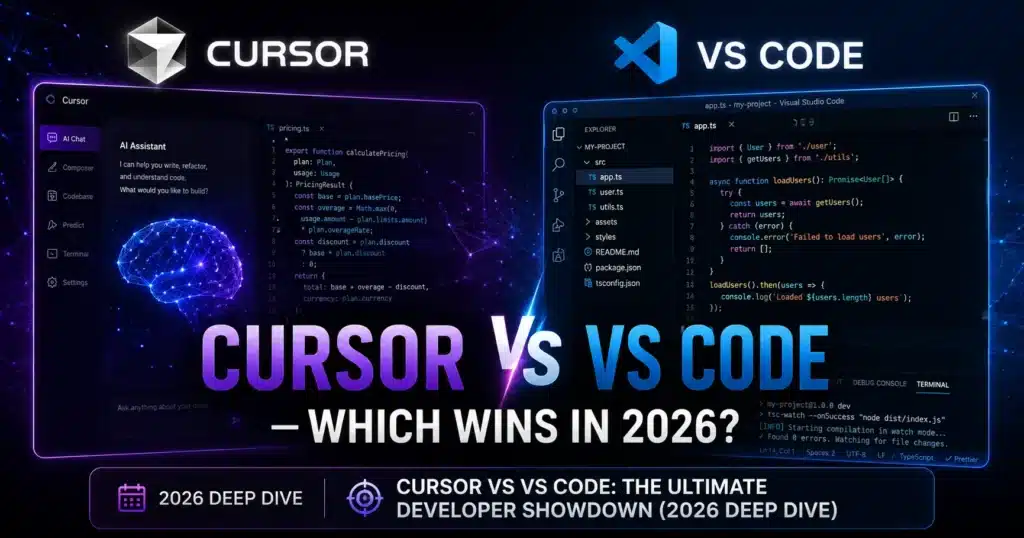
This post is not a surface-level comparison. We’re going deep — into the architecture, the AI capabilities, the extension ecosystems, pricing models, performance benchmarks, and the real-world developer experience of both tools. By the time you finish reading, you’ll have a clear, opinionated answer to the Cursor vs VS Code question that fits your specific situation. No fluff, no vague “it depends” non-answers.
Whether you’re a solo indie developer shipping side projects at midnight or an engineering lead responsible for the productivity of a 50-person team, this breakdown will give you everything you need to make an informed decision. Let’s get into it.
Table of Contents
What Is VS Code — And Why Did It Win the Editor Wars?
Visual Studio Code is an open-source, cross-platform code editor built and maintained by Microsoft. First released in April 2015, it was originally positioned as a lightweight alternative to the full Visual Studio IDE. It did not take long for VS Code to do something remarkable: it won the hearts of developers across virtually every programming language, stack, and operating system. By 2024, the Stack Overflow Developer Survey consistently ranked it as the most popular development environment on the planet, used by over 70% of professional developers.
The secret to VS Code’s dominance was never any single killer feature. It was the combination of sensible defaults, an insanely powerful extension marketplace, deep Git integration, a built-in terminal, IntelliSense for dozens of languages, and a performance profile that managed to stay lean even as features piled on. VS Code proved that a tool could be simultaneously accessible to beginners and powerful enough for senior engineers building large-scale production systems.
Microsoft also made a brilliant strategic move by keeping VS Code open-source under the MIT license while building strong commercial integrations around it—Azure, GitHub Copilot, Dev Containers, Remote SSH, and more. This created a flywheel: more users meant more extension developers, which meant more features, which meant more users. The extension marketplace today has over 50,000 extensions covering everything from Kubernetes management to Pomodoro timers.
Also Read: Cursor 3 AI Review
VS Code’s Language Server Protocol (LSP) is one of its most underappreciated contributions to the entire developer tooling ecosystem. By standardizing the way language intelligence is served to editors, Microsoft effectively made VS Code a platform that third parties build on top of rather than just a tool people use. This architectural decision is one of the core reasons VS Code has lasted so long and why the Cursor vs VS Code conversation is so interesting — because Cursor is itself built on top of VS Code.
What Is Cursor — The AI-Native Editor Built for 2026?
Cursor is a code editor built by Anysphere Inc., a startup founded in 2022. What makes Cursor structurally unique in the Cursor vs VS Code debate is that it is not a separate editor built from scratch. Cursor is a fork of VS Code. It inherits VS Code’s entire foundation — the Monaco editor, the extension marketplace compatibility, the keyboard shortcuts, the settings system, the themes — and layers a deeply integrated AI system on top of that foundation.
The Cursor team’s core thesis is simple: AI should not be a bolt-on plugin. It should be woven into the editor itself, understanding your entire codebase rather than just the file you currently have open. This led to features like Cursor’s codebase indexing, where the editor builds and maintains a semantic index of your project so that AI-powered features can answer questions and generate code with full awareness of your specific conventions, architecture, and existing implementations.
Cursor gained significant traction through word of mouth in the developer community starting in late 2023 and accelerated rapidly through 2024 and into 2025. Engineers at companies like Stripe, Vercel, and various Y Combinator startups began publicly endorsing it, and testimonials about dramatic productivity improvements spread quickly across social media. The Cursor official documentation shows a product that has matured considerably from its early days, with features like multi-file editing, composer mode, and terminal AI integration now polished to a high standard.
For developers evaluating Cursor vs VS Code, understanding that Cursor is a VS Code fork is critically important context. It means the migration cost is dramatically lower than switching to an entirely different editor like Neovim, JetBrains, or Zed. You bring your extensions, your keybindings, your settings, and your muscle memory. What you gain is a layer of AI capability that, when it works well, can feel genuinely transformative to your daily coding experience.
Cursor vs VS Code: Core Feature Comparison at a Glance
Before diving into the nuanced analysis of each dimension, here is a high-level comparison table that maps the most important features side by side. This gives you the structured overview you need before we unpack each row in detail.
Comparison Table: Cursor vs VS Code
| Feature | Cursor | VS Code |
|---|---|---|
| Base Editor | Fork of VS Code (Monaco) | Original VS Code (Monaco) |
| AI Integration | Native, deeply embedded | Via extensions (GitHub Copilot, etc.) |
| Codebase Indexing | Yes — full project semantic index | No (extension-dependent) |
| Multi-file AI Editing | Yes (Composer / Agent mode) | Limited (Copilot Edits, partial) |
| AI Chat in Editor | Yes — context-aware chat | Via Copilot Chat extension |
| Inline Code Completion | Yes — Tab completion with prediction | Via Copilot or Tabnine extensions |
| Terminal AI Integration | Yes — command suggestions in terminal | Limited, extension-dependent |
| Extension Compatibility | Compatible with VS Code extensions | Full VS Code Marketplace |
| Open Source | No (proprietary fork) | Yes (MIT License) |
| Pricing | Free tier + Pro ($20/mo) + Business ($40/mo) | Free forever |
| Performance (Cold Start) | Slightly heavier than VS Code | Fast and lean |
| Privacy / Code Privacy | Privacy mode available | Full local, open-source |
| Custom AI Model Support | Yes (Claude, GPT-4o, Gemini, local) | Depends on extension |
| Git Integration | Inherited from VS Code | Excellent, built-in |
| Remote Development | Via VS Code SSH extension (inherited) | Full Remote-SSH support |
| Themes & UI | VS Code themes (fully compatible) | Full theme marketplace |
| Community Size | Growing fast | Massive, decade-old ecosystem |
| Best For | AI-first developers, rapid prototyping | All developers, enterprise teams |
AI Capabilities: The Core Battlefield in Cursor vs VS Code
When developers argue about Cursor vs VS Code, they are almost always really arguing about AI. This is where the two tools diverge most sharply, and it is the dimension that matters most to developers in 2026 given how central AI assistance has become to modern software development workflows.
Cursor’s AI integration is architectural, not cosmetic. The editor maintains a persistent semantic index of your entire codebase. When you ask Cursor’s AI a question — “why is this function running slowly?” or “add proper error handling to this module” — the model does not just see your current file. It understands how that file connects to the rest of your project. It knows what types you’ve defined elsewhere, what conventions your team follows, what your folder structure looks like, and what similar functions exist in neighboring modules. This codebase-level awareness is the single biggest differentiator in the Cursor vs VS Code debate.
VS Code’s AI story runs through extensions, primarily GitHub Copilot — Microsoft’s own AI coding assistant powered by OpenAI models. GitHub Copilot has improved significantly and now includes a chat interface, inline completions, and a feature called Copilot Edits that can make changes across multiple files. For many developers, this is genuinely sufficient. Copilot’s inline suggestions are fast, often accurate, and its chat functionality handles a solid range of tasks. The GitHub Copilot documentation shows continuous investment from Microsoft in expanding these capabilities.
The experience gap, however, becomes noticeable on non-trivial tasks. Ask Cursor’s Composer mode to “refactor the authentication system to use JWT instead of session tokens across the entire project,” and it will generate a coherent, multi-file plan; show you the diff across every affected file; and let you review and accept changes systematically. Ask Copilot Edits to do the same task, and the results are considerably less reliable—it struggles with cross-file coherence and complex dependency chains. In a head-to-head Cursor vs VS Code test in this category, Cursor wins without much debate.
Cursor also lets you choose which underlying AI model powers your experience. You can use Claude Sonnet or Opus from Anthropic, GPT-4o from OpenAI, Google’s Gemini models, or even route requests through a local model via Ollama. This flexibility is genuinely valuable for developers who work in regulated industries, prefer specific model behaviors, or want to control costs. VS Code with GitHub Copilot is locked to Microsoft/OpenAI’s model lineup unless you switch to a third-party extension, which fragments the experience.
Check Out: What is (MODEL CONTEXT PROTOCOL) MCP?
Performance and Resource Usage: Which Editor Is Faster?
Performance is a dimension of Cursor vs VS Code that gets less attention than AI features but matters enormously in daily use. An editor you interact with hundreds of times per day needs to feel snappy. Latency accumulates into frustration faster than almost any other UX problem.
VS Code has a hard-earned reputation for being fast despite being built on Electron. The VS Code team invests heavily in startup performance, extension isolation, and memory management. On a modern machine with an SSD, VS Code typically cold-starts in under two seconds, and subsequent launches are even faster. For large monorepos, VS Code handles file watching and indexing efficiently, and it does not hog CPU in the background while you are not actively using it. This lean performance profile is one of the things long-time VS Code users most value, and it is worth accounting for in your Cursor vs VS Code decision.
Cursor carries a slightly heavier footprint because of its AI infrastructure. The codebase indexing process—while it runs in the background—consumes CPU and memory, particularly when you open a new large project and Cursor builds its initial semantic index. On machines with 8GB of RAM, this can be noticeable. On 16GB+ machines, it’s largely invisible. Cursor’s team has made significant performance improvements through 2025 and into early 2026, and the gap with VS Code has narrowed, but VS Code remains the winner in raw startup time and idle resource consumption.
For developers on lower-spec machines or working with extremely large codebases (multi-million line repositories), this performance difference is a real consideration. A JavaScript engineer working on a small SaaS project will barely notice the difference. An engineer working on a C++ game engine with hundreds of thousands of files might find Cursor’s indexing overhead more frustrating. Both editors handle remote development scenarios where the heavy computation happens on a server rather than your local machine, which largely neutralizes the performance concern in those setups.
It is also worth noting that because Cursor inherits VS Code’s Electron foundation, the fundamental performance ceiling is the same. Neither editor will match the raw speed of Neovim or a native application like Zed. Both tools are making bets that the convenience and ecosystem of Electron-based editors outweigh the performance advantages of lighter alternatives. For most web developers, data engineers, and Python developers, this trade-off is entirely reasonable in 2026.
Extensions and Ecosystem: Does Cursor Match VS Code?
The VS Code extension ecosystem is one of the genuine wonders of the modern developer tooling world. Over 50,000 extensions covering everything imaginable: language support, debuggers, linters, formatters, database clients, Docker management, REST API testers, productivity tools, and themes. Extensions like Prettier, ESLint, GitLens, Remote SSH, Pylance, and Docker have millions of installs and are central infrastructure in most development workflows.
Because Cursor is a VS Code fork, it is compatible with the vast majority of VS Code extensions. You can install your favorite extensions directly inside Cursor using the same extension panel experience you are used to. Cursor pulls from a compatible registry, meaning practically every extension you rely on in VS Code works in Cursor. This compatibility is one of Cursor’s strongest arguments in the Cursor vs VS Code migration debate — there is almost no extension tax when switching.
The caveat is “almost.” Some extensions that depend on very specific VS Code internals or that conflict with Cursor’s own AI features can behave unpredictably. AI-focused extensions like GitHub Copilot, for instance, can create interference with Cursor’s native AI features, and most Cursor users disable Copilot after switching. Extensions that hook deeply into the editor’s TypeScript server or rely on undocumented VS Code APIs may occasionally break across Cursor updates. These edge cases affect a small percentage of users, but they are worth knowing about before you commit to Cursor vs VS Code for your team.
VS Code also benefits from first-party support for major platform integrations. The Remote Development extension pack, Azure extensions, and GitHub-native features like pull request management are all developed or co-developed by Microsoft and work flawlessly in VS Code. Cursor inherits much of this, but occasional incompatibilities arise — particularly with Remote SSH in complex enterprise network configurations. For enterprise developers who rely heavily on Microsoft’s first-party VS Code ecosystem, these minor friction points in the Cursor vs VS Code comparison are worth evaluating against the AI productivity benefits.
Pricing: Free vs. Paid — Breaking Down the Real Cost
Pricing is one of the most practically important dimensions of Cursor vs VS Code for individual developers and engineering managers alike. VS Code is completely free. Always has been. It’s MIT licensed, open-source, and Microsoft has shown no signs of changing this model. The only cost associated with VS Code is if you add GitHub Copilot, which runs $10/month for individuals or $19/month per user for businesses — and that pricing is from Microsoft, not the VS Code project itself.
Cursor offers a free tier that is reasonably generous for developers who want to evaluate the product seriously. The free tier includes limited AI completions and a constrained number of Composer/Agent requests per month. For light experimentation, the free tier is adequate. But developers who integrate Cursor deeply into their workflow will almost certainly hit the free tier limits within the first week of serious use. After that, the Pro tier is $20/month per user, which unlocks unlimited completions, access to premium AI models, and higher limits on Agent usage.
The Business tier at $40/month per user adds privacy controls, centralized billing, team management features, and enhanced data security guarantees — which is a table-stakes requirement for enterprises working on proprietary code. For a 10-person engineering team, that is $400/month for the Cursor Business plan versus roughly $190/month for GitHub Copilot Business. The Cursor vs VS Code cost difference is real and meaningful at scale, and any engineering manager doing an honest evaluation needs to put this on the spreadsheet.
However, the productivity argument for Cursor’s cost is also genuinely compelling. If Cursor saves each developer 30 to 45 minutes per day — a conservative estimate based on reported productivity improvements from teams using it — the ROI at even modest hourly developer rates is comfortably positive. The Anysphere pricing page provides full detail on tier differences. The question is not whether Cursor costs more than VS Code — it does — but whether the productivity gains justify that cost for your specific team and workflow.
Privacy and Security: A Serious Consideration for Enterprise Teams
Privacy is often the sleeper issue in the Cursor vs VS Code debate that surfaces aggressively once developers try to bring Cursor into a regulated or enterprise environment. VS Code is open-source and runs entirely locally. The core editor sends no code anywhere. Every byte of your source code stays on your machine unless you explicitly install an extension that transmits data — and even then, you control which extensions you install and can audit them.
Cursor’s Privacy Mode is a direct response to enterprise privacy concerns. When Privacy Mode is enabled, Cursor commits not to store, log, or use your code for training AI models. The AI requests are routed through their infrastructure but not retained. For most modern software companies, this level of privacy assurance is sufficient and comparable to what you get with GitHub Copilot Business. The Cursor Privacy Policy explains these commitments in detail, and the existence of Privacy Mode has made Cursor viable in environments where it would otherwise be blocked outright.
The more nuanced security concern is that Cursor — as a proprietary closed-source fork — cannot be fully audited. VS Code’s core can be inspected line by line by anyone. You can build it from source and verify what it does. Cursor’s AI integrations, its indexing system, and its telemetry are not fully open to this level of scrutiny. For security-conscious organizations in finance, defense, healthcare, or government, this closed-source nature is a genuine blocker in the Cursor vs VS Code evaluation regardless of Cursor’s contractual privacy commitments.
For the majority of developers at typical software companies, this concern is theoretical rather than practical. If you are already using GitHub Copilot, Notion, Linear, Slack, or any number of SaaS tools, your tolerance for transmitting context to third-party services is already established. Cursor adds to that list but does not fundamentally change your threat model. The developers who need to take the privacy question seriously know who they are, and they should evaluate Cursor’s enterprise security documentation in detail before making the Cursor vs VS Code call for their team.
Who Should Use Cursor and Who Should Stick With VS Code?
The Cursor vs VS Code debate does not have a universal answer, and anyone who tells you otherwise is selling something. The right choice depends on your role, your codebase size, your team’s constraints, and your personal relationship with AI-assisted coding. Let’s be direct about who benefits most from each tool.
Cursor is an exceptional fit for solo developers and small teams who write a lot of code daily and are comfortable leaning into AI suggestions. If you are building a SaaS product, prototyping rapidly, or doing a lot of greenfield development where generating boilerplate, tests, and documentation with AI assistance is a constant need, Cursor’s ROI is high and immediately felt. Developers who have described Cursor as “the first editor where AI actually helps” are typically in this category — they are using Composer mode for multi-file tasks and finding that Cursor’s codebase awareness makes the AI suggestions meaningfully better than what they got from Copilot.
VS Code remains the right choice for enterprise teams with strict compliance requirements, developers in regulated industries, and engineers working on extremely large codebases where Cursor’s indexing overhead is a real cost. VS Code is also the better choice for developers who prefer deep customization control over their editor environment, want to avoid any vendor lock-in from a startup’s pricing decisions, or are working in contexts where the entire team does not buy in to AI-assisted development. A team where half the developers are enthusiastic about AI and half are skeptical will have a smoother time with VS Code plus an optional Copilot subscription.
There is also a middle path that many developers successfully walk in the Cursor vs VS Code comparison: use VS Code as the default for production work and context-switching-heavy tasks, and keep Cursor open for greenfield development, spike prototyping, and AI-heavy sessions. Because Cursor imports your VS Code configuration, keeping both installed and moving between them is not particularly painful. It is not an elegant solution, but it is a pragmatic one that lets developers capture Cursor’s AI advantages without fully committing.
Real-World Developer Workflows: How Each Editor Fits
Understanding Cursor vs VS Code in theory is one thing. Seeing how each editor fits into realistic developer workflows is more valuable. Consider a frontend developer building a React application. In VS Code, their workflow involves ESLint catching errors in real time, Prettier auto-formatting on save, GitLens showing blame information inline, and Copilot offering line-level autocomplete suggestions. This workflow is polished, well-documented, and works reliably.
The same developer in Cursor has everything they had in VS Code — same extensions, same keybindings, same Git integration — plus the ability to highlight a component and ask “refactor this to use React Query instead of manual fetch calls” and receive a coherent, complete implementation across the component and its associated hook file. Or they can ask Cursor to “write comprehensive unit tests for this custom hook using Vitest” and get a well-structured test file that actually understands the hook’s behavior from the codebase context. These multi-step, context-aware AI interactions are the workflows where Cursor genuinely outperforms VS Code in practical terms.
For a backend Python developer, the Cursor vs VS Code choice looks different. VS Code with Pylance and Ruff provides outstanding Python language support that Cursor inherits. But a Python developer building data pipelines or Django applications will find Cursor’s AI chat particularly useful for generating SQLAlchemy queries, writing FastAPI endpoint handlers, debugging async code, and documenting complex business logic. The ability to chat with the AI about your codebase — “explain why this Celery task is being retried unexpectedly” — saves hours of rubber-duck debugging.
Full-stack developers perhaps gain the most from Cursor in the Cursor vs VS Code comparison. When your work spans a TypeScript frontend, a Python backend, a Postgres schema, and a CI/CD pipeline configuration all in the same repository, having an AI that understands all of those layers simultaneously is a qualitative leap over a line-completion tool. Cursor’s Composer can make coordinated changes across your frontend, backend, and infrastructure code in a way that would require hours of manual effort—and that capability becomes increasingly valuable as the scope and complexity of work increase.
The Future Trajectory: Where Are These Editors Heading?
Looking at the Cursor vs VS Code landscape through a forward-looking lens is important for any decision that affects tooling at a team level. Both products are moving fast, and the competitive pressure they create on each other is accelerating progress for the entire developer tooling ecosystem.
Microsoft’s investment in GitHub Copilot continues to be substantial, and the integration between Copilot, VS Code, and GitHub as a platform creates compounding value. Features like Copilot Workspace — which links AI assistance to GitHub issues and pull requests — show that Microsoft is thinking about AI assistance as a full software development lifecycle tool rather than just an editor feature. As these capabilities mature, the gap between VS Code and Cursor in terms of AI quality could narrow. The GitHub blog is the best place to track Microsoft’s roadmap on these features.
Cursor, for its part, is innovating at the pace typical of a well-funded startup with a focused mission. Features like Agent mode—where Cursor can autonomously make changes, run tests, interpret results, and iterate without constant human guidance—represent a vision of AI-assisted development that goes significantly beyond autocomplete. If Cursor executes well on this vision, the Cursor vs VS Code comparison in 2026 will look very different from today, with Cursor potentially representing a category of tool that VS Code simply cannot match without a fundamental architectural rethink.
The broader ecosystem is also shifting. Editors like Zed are pursuing native-speed performance combined with collaborative features. JetBrains is building its own AI-native experience. The rise of browser-based environments like Replit and CodeSandbox is changing where some development happens entirely. In this landscape, the Cursor vs VS Code debate is really a proxy for a larger question: how much of the cognitive work of software development should AI be doing, and how should the tooling around that process be organized?
Developers who internalize this broader context will make better tooling decisions. The right answer to Cursor vs VS Code is not just about today’s feature set—it is about which ecosystem is moving in the direction that aligns with how you want to be writing code in three years. Right now, Cursor is making the more audacious bet on that future, and it is executing well enough that the bet looks credible.
Migration Guide: Moving from VS Code to Cursor Without Pain
One of the underappreciated advantages in the Cursor vs VS Code comparison is how low-friction the migration path is. Because Cursor is a VS Code fork, the migration is less like switching editors and more like upgrading to a new version with bonus features. Here is how to make the move cleanly.
Start by exporting your VS Code settings using the Settings Sync feature or by locating your settings.json files manually. Cursor will prompt you to import your VS Code configuration on first launch and can typically import everything automatically—themes, settings, keybindings, and even your installed extensions list. Most developers report that their first Cursor session feels like being in a familiar environment within five minutes. The cursor migration documentation walks through this process in detail.
The extensions that need attention are AI-related ones. Disable or uninstall GitHub Copilot in Cursor if you had it in VS Code — running both Copilot and Cursor’s native AI simultaneously creates conflicts, confusion, and redundant costs. Some developers keep Tabnine or other lightweight AI tools alongside Cursor, but most find that Cursor’s native AI makes these redundant. Keep all your non-AI extensions active—ESLint, Prettier, language packs, debuggers, theme packages—these will work exactly as they did in VS Code.
Spend your first week with Cursor deliberately learning its specific AI features rather than just using it as a VS Code replacement. The tab completion works differently from Copilot and rewards developers who pause slightly to let it generate multi-line suggestions. Cursor Chat (Cmd+L or Ctrl+L) requires learning what kinds of questions and instructions it responds to best. And Composer mode (Cmd+I or Ctrl+I) is powerful enough to be transformative but requires practice to use efficiently. Most developers who “tried Cursor and didn’t feel the difference” abandoned it before investing this learning week, which is the single biggest reason the Cursor vs VS Code comparison is sometimes unfair to Cursor.
Frequently Asked Questions: Cursor vs VS Code
1. Is Cursor just VS Code with AI added on top?
Cursor is built as a fork of VS Code, so it inherits the VS Code foundation — the editor, extension compatibility, settings system, and UI. However, calling it “just VS Code with AI” undersells the depth of Cursor’s AI integration. The codebase indexing, multi-file editing via Composer, and the quality of context-aware suggestions represent a meaningfully different product experience compared to VS Code with an AI extension installed. The architecture is VS Code; the workflow layer on top is something new.
2. Can I use my VS Code extensions in Cursor?
Yes. The vast majority of VS Code extensions work in Cursor without any modification. Cursor maintains compatibility with the VS Code extension registry, and most developers migrate their full extension setup with zero friction. The main exception is AI-focused extensions like GitHub Copilot, which can conflict with Cursor’s native AI features and are best disabled when using Cursor.
3. Is Cursor free to use?
Cursor has a free tier that gives you limited access to AI features each month. For serious daily use, most developers will need the Pro plan at $20/month, which provides unlimited completions and higher limits on Composer and Agent usage. VS Code, by contrast, is entirely free — but adding GitHub Copilot for AI functionality costs $10/month for individuals.
4. Does Cursor store my code on its servers?
By default, Cursor processes your code through its servers to power AI features, but does not permanently store it for training purposes under its Privacy Mode setting. When Privacy Mode is enabled, Cursor commits not to use your code to train AI models. For enterprise teams with strict compliance needs, reviewing Cursor’s Business plan privacy guarantees and legal commitments is recommended before deployment.
5. Which is better for large codebases — Cursor or VS Code?
VS Code generally handles very large codebases more efficiently from a raw performance perspective. Cursor’s codebase indexing can be resource-intensive when first processing large repositories. However, once indexed, Cursor’s AI capabilities become significantly more valuable in large codebases precisely because the AI has a complete semantic understanding of the codebase — something VS Code extensions cannot replicate at the same quality level.
6. Can I run Cursor and VS Code at the same time?
Yes. Both editors can be installed and run simultaneously on the same machine. They use separate configuration directories by default, though Cursor can import your VS Code configuration. Many developers keep both installed and use each for different workflows — Cursor for AI-heavy tasks and VS Code for situations where minimal resource usage matters.
7. Does Cursor support remote development like VS Code?
Cursor inherits VS Code’s Remote SSH and Dev Containers support, so most remote development scenarios work in Cursor. However, because Cursor is a proprietary fork, some advanced enterprise remote development configurations designed specifically for VS Code may require minor adjustments. The experience is broadly compatible but not always identical to VS Code’s first-party remote development offering.
8. Is GitHub Copilot better than Cursor’s built-in AI?
For simple inline completions, the quality gap between GitHub Copilot and Cursor’s native AI is modest. Where Cursor pulls decisively ahead is in multi-file editing, codebase-aware chat, and Agent mode tasks that require understanding your entire project. For isolated file editing and line completion, Copilot in VS Code is a strong competitor. For complex, cross-file, context-rich tasks, Cursor’s built-in AI is substantially better in 2026.
9. Which editor is better for team collaboration?
VS Code has more mature team collaboration tooling, including Live Share for real-time collaborative editing, deep GitHub integration via the GitHub Pull Requests extension, and broad enterprise support infrastructure. Cursor’s team collaboration features are growing but are not yet at the same maturity level. For collaboration-heavy teams, VS Code or VS Code plus Cursor (individually) is a safer choice.
10. Does Cursor support all programming languages?
Cursor inherits VS Code’s language support infrastructure, which means anything VS Code supports — Python, JavaScript, TypeScript, Go, Rust, Java, C++, Ruby, and dozens of others — Cursor also supports. Language-specific extensions work in Cursor just as they do in VS Code. The AI features work across all languages but tend to perform best on languages with large training data representation, such as JavaScript, Python, TypeScript, and Go.
11. What AI models does Cursor use?
Cursor supports multiple AI models including Claude Sonnet and Opus (Anthropic), GPT-4o (OpenAI), Gemini (Google), and local models via Ollama. Pro plan users can switch between models depending on the task. This flexibility is one of Cursor’s advantages over GitHub Copilot, which is primarily limited to OpenAI models.
12. Is Cursor suitable for beginners or only experienced developers?
Cursor is accessible to developers at all experience levels. Beginners can benefit enormously from Cursor’s ability to explain code, suggest corrections, generate boilerplate, and answer questions about error messages. Experienced developers benefit more from Composer mode and codebase-level AI assistance. The learning curve is low because the base editor experience is identical to VS Code.
13. How does Cursor’s Agent mode work?
Cursor’s Agent mode allows the AI to autonomously plan and execute multi-step coding tasks. When given a high-level instruction — “add user authentication with email verification to this Express app” — Agent mode will analyze the codebase, propose a plan, implement changes across multiple files, run terminal commands, interpret test results, and iterate. It requires user approval at key steps but dramatically reduces the manual overhead of complex implementation tasks.
14. Is VS Code better for open-source development?
VS Code is a strong choice for open-source development for several reasons: it is itself open-source, it has deep GitHub integration for managing issues and pull requests, it supports virtually all programming languages and build systems, and its cost is zero. Cursor adds AI productivity benefits but the proprietary nature and subscription cost may not be justified for volunteer open-source contributors working outside an organizational context.
15. Will Cursor eventually replace VS Code as the dominant editor?
Cursor is growing rapidly and is already the daily driver for a significant and growing minority of professional developers. Whether it replaces VS Code depends on several factors: how well Cursor executes its AI roadmap, whether Microsoft’s GitHub Copilot improvements close the capability gap, and whether Cursor’s pricing model remains competitive as it scales. The Cursor vs VS Code competition is making both products better, which benefits all developers regardless of which tool ultimately wins the market.
Conclusion: The Honest Verdict on Cursor vs VS Code
Here is the straightforward take after everything we’ve covered: Cursor vs VS Code is not a contest with a clean universal winner. It is a choice between two meaningfully different philosophies about how developers should interact with their tooling in the AI era.
VS Code is the safe, proven, enterprise-ready, free choice. It is not going anywhere. Its ecosystem is unmatched, its performance is reliable, and with GitHub Copilot it offers a credible AI-assisted development experience that works well for the vast majority of use cases. If you are managing tooling decisions for a large, diverse engineering team, VS Code plus an optional Copilot subscription is the decision that will create the least friction and the most flexibility.
Cursor is the forward-leaning bet. It is genuinely better at AI-assisted coding in 2026 — specifically for complex, multi-file, context-rich tasks that represent a growing share of actual developer work. Its migration path from VS Code is frictionless, its model flexibility is an advantage, and for developers who invest the time to learn its AI features deeply, the productivity gains are real and meaningful. If you write a lot of code daily, work on greenfield projects or rapidly evolving codebases, and are comfortable paying for tools that demonstrably improve your output, Cursor is worth your serious attention.
The best advice is not to stay in the theoretical realm. Download Cursor, import your VS Code config, and spend one serious week using it for your actual work. By the end of that week, you will have your own lived answer to the Cursor vs VS Code question—and it will be worth far more than any comparison article.
Last updated: May 2026. External links verified at time of publication. For the latest feature updates on both tools, visit the VS Code release notes and the Cursor changelog directly.
Also check out our NET WORTH posts.
This answered my questions. Also recommend The Choicer Voicer: for rhythm and music games.. The Choicer Voicer
Really helpful post. If you need text-to-image with readable in-image text, check out Luna Lisa Alpha at . Luna Lisa Alpha